


1. Choose Your Garments
Connect the folder containing your extracted Pixel Sauce mockups. Search by brand, garment name, or product code, then select one or more supported garments for your batch.
YOUR NEXT CREATIVE MOVE
Batch Exporter for Photoshop.
Choose supported Pixel Sauce mockups, add artwork to the front, back, or both, and set the placement. Batch Exporter saves your selected garments, colors, and views as PNG, JPG, or both.
See how it works
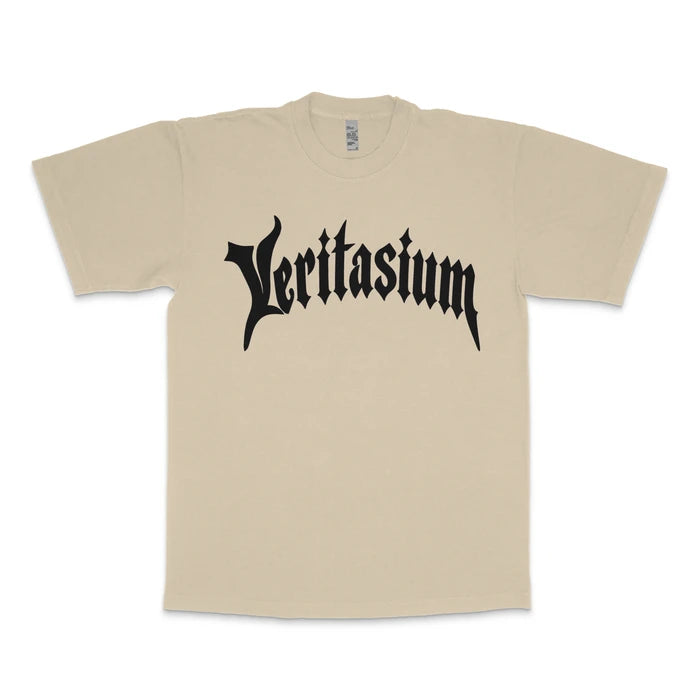
Select a swatch to view an exported example.
Choose the garments, artwork, placement, colors, and views. Then start the batch instead of changing colors and saving each variation by hand.
Connect the folder containing your extracted Pixel Sauce mockups. Search by brand, garment name, or product code, then select one or more supported garments for your batch.

Pick a saved design or import a PNG or JPG for the front, back, or both. Open the placement editor, move or resize the artwork in Photoshop, then apply the placement.
Choose the available front and back views you want to export, then select colors for each garment. Build only the combinations you need for your store, collection, or client.

Choose your tag, background, and drop-shadow options. Select PNG, JPG, or both, choose an export folder, and start the batch.
Choose from each garment’s available colors to create images for your store, compare options with a client, or prepare a new collection. Export the selected variations together.
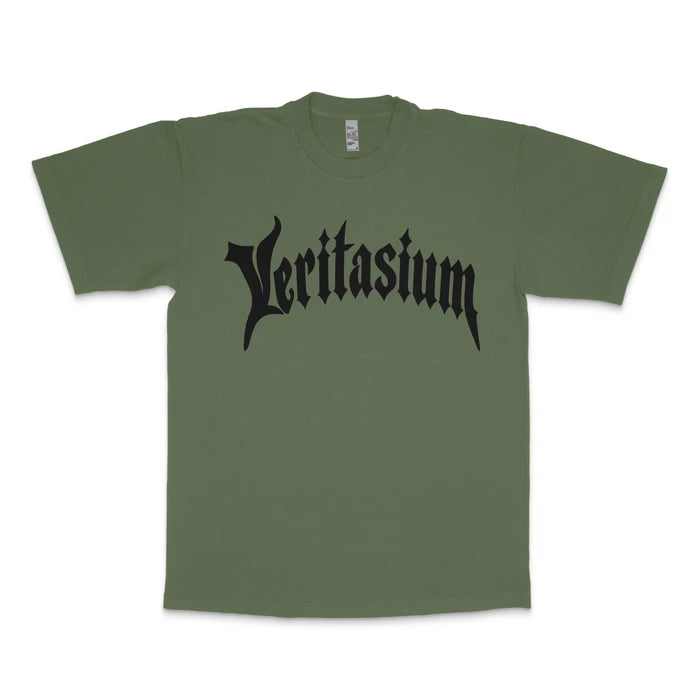
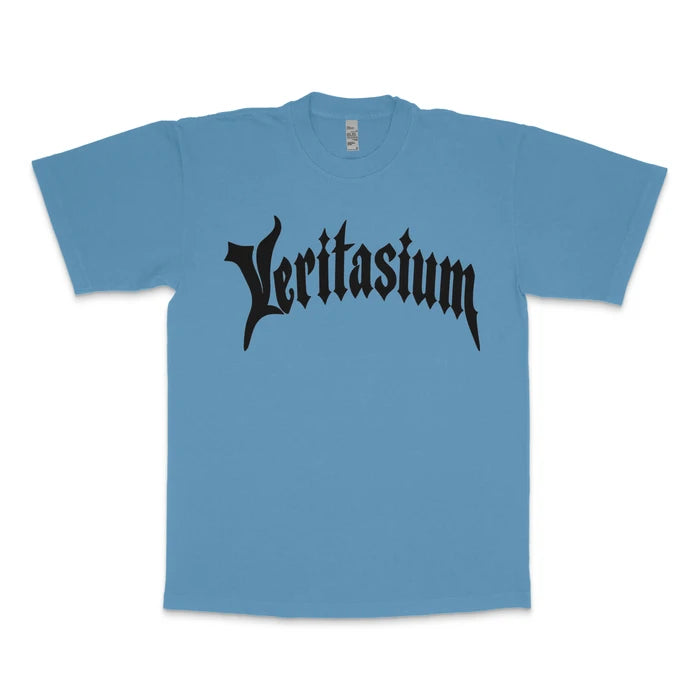
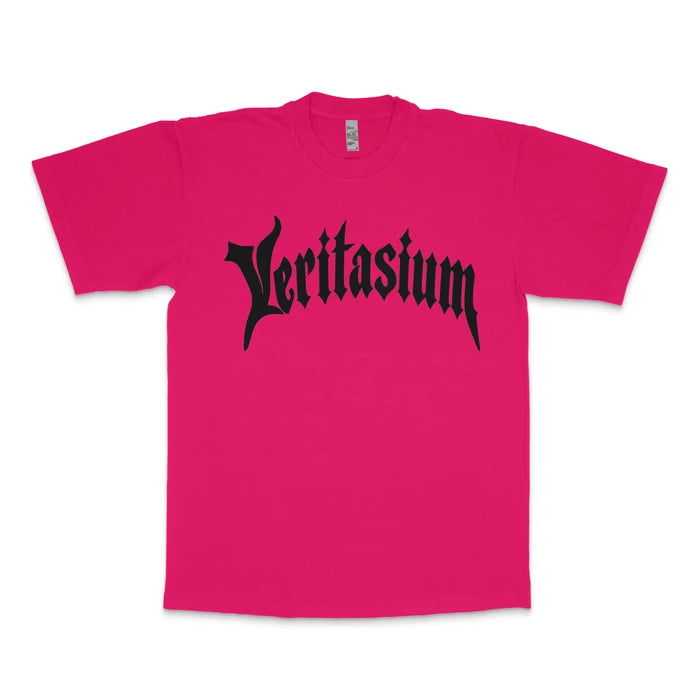
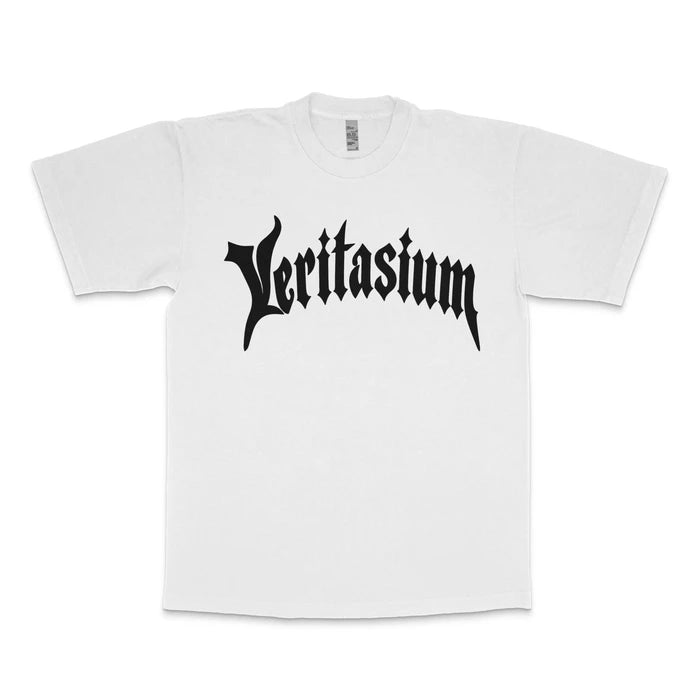
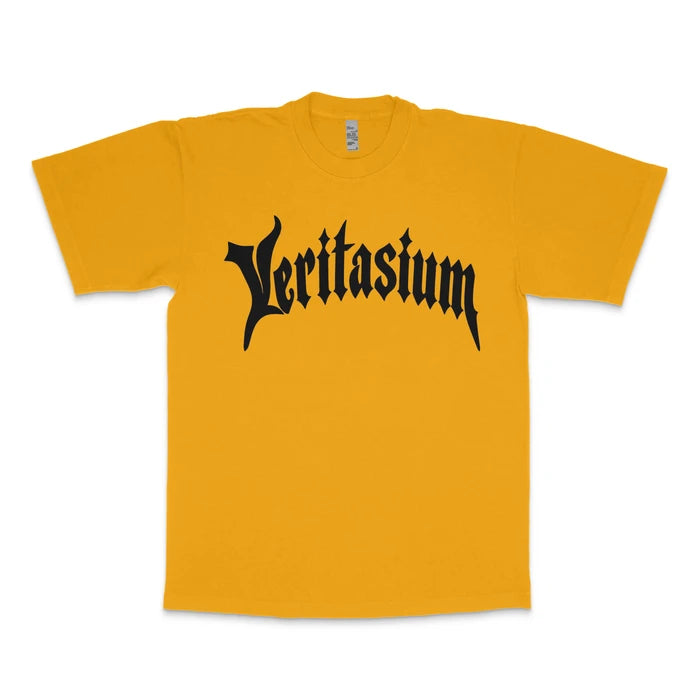
Example: 15 colors. One view. PNG + JPG.
For one garment with artwork on the selected side, that produces 30 files. Adding another view that uses your artwork brings the total to 60. The plugin shows your planned image count before you export.

Open the placement editor to move and resize your artwork in Photoshop, then select Apply placement. When you select one garment, compatible views show the actual garment while you position your design.
For multiple garments, use the shared placement guide for each garment type, then adjust individual garments where needed. Sets marked Manual placement required need a placement applied to each side you want to export.
See which mockups are supportedSave the selected mockup variations in one or both formats. PNG preserves transparency; JPG fills transparent areas with white. Choose an export folder for the batch.
Choose whether to include the brand tag, custom tag, background, and drop shadows. The same options apply across the batch, wherever those layers are available.
Where the mockup has a controllable background, turn off Background to remove it from PNG exports. Use Drop shadows where available to remove the surrounding shadow. The custom-tag option shows or hides the tag already in the PSD.
Import PNG or JPG artwork once, then reuse it from the gallery. Choose one image for each side you want to export, or the same image for both. Those front/back selections apply across the garments in the batch.
Use your supported Pixel Sauce PSDs to create the garment, color, and view combinations you choose. Set the artwork and placement, select your export options, and start the batch.
$39USD
Includes the CCX plugin installer, setup guide, and supported-mockups list.
Double-click the CCX installer and follow the prompts in Adobe Creative Cloud Desktop. Restart Photoshop, then open Batch Exporter from the Plugins menu.
Designed for Adobe Photoshop on macOS and Windows. Requires Photoshop 25.2 or later.
Connect the folder containing your extracted mockup PSDs. The plugin recognizes 731 supported sets; the compatibility list identifies available views and sets that need manual placement. Keep your PSD files accessible while the batch runs.
The mockup list could not load. Refresh the page to try again.
No matching mockups. Try a brand or product code.
Check the download contents, artwork options, placement controls, and export behavior before you buy.
No. The download contains the plugin installer, setup guide, and compatibility list. Connect the folder containing your own extracted, supported Pixel Sauce mockup PSDs.
Designed for Adobe Photoshop on macOS and Windows. Requires Photoshop 25.2 or later.
Search by brand, garment name, or product code in the search box above. A green checkmark beside a matching title means that mockup set is supported by Batch Exporter.
Yes. Choose one image for the front and another for the back, use the same image on both, or add artwork to just one side. These artwork selections apply across the garments in your batch.
Yes. Each selected garment has its own available color swatches. View selections apply across the batch; only views available for each garment can be exported.
Import PNG or JPG artwork. Use a transparent PNG when the design should sit on the garment without a rectangular image background. After selecting it, use the placement editor to move and resize the design.
These sets need you to position the artwork manually for each side you want to export. Open the placement editor, move and resize the artwork, then select Apply placement before starting the batch.
Choose PNG to preserve transparency. Where the mockup has a controllable background, turn off Background; turn off Drop shadows where available if you want the surrounding shadow removed too. JPG cannot retain transparency: the plugin fills transparent areas with white.
Batch time depends on your PSDs, computer, selected views and colors, and file formats. Run a small batch first to check the placement and see how long it takes on your computer, then expand your selection.
The plugin is configured for the Pixel Sauce sets in the supported-mockups list. It relies on their layer structure and placement areas, so arbitrary third-party PSD mockups are not supported.